QGIS Plugin Development
- Install Eric IDE Windows
- Deploy QGIS Plugin VowaConservation
- Providing QGIS-Plugins in Multiple Languages
Install Eric IDE Windows
Eric 7 Installation:
cd %USERPROFILE%
c:\Python39\python.exe -m venv eric_env
%USERPROFILE%\eric_env\Scripts\python.exe -m pip install --upgrade pip
%USERPROFILE%\eric_env\Scripts\python.exe -m pip install eric-ide
%USERPROFILE%\eric_env\Scripts\eric7_post_install.exe
Aus https://eric-ide.python-projects.org/eric-download.html
Install PyQT5:
- PyPI -> install -> pyqt5 (eingeben)
- PyPI -> install -> PyQt5Designer (eingeben)
C:\Users\gha.VOGELWARTE\OneDrive - Vogelwarte\qgis\Qt Designer Setup.exe
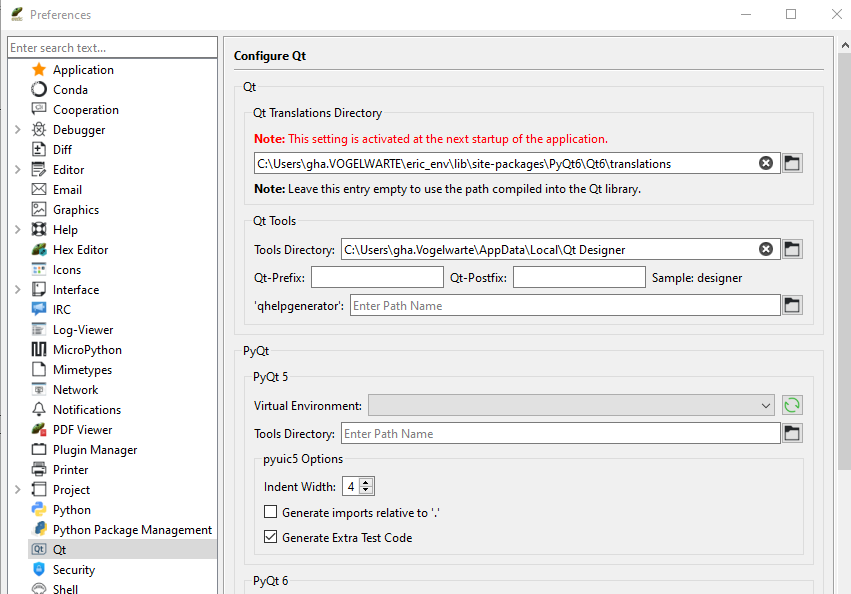
benötigte QGIS plugins:
- Plugin Reloader
damit Plugin Reloader auf Entwicklungs-Daten zugreifem kann, muss vor dem Start von QGIS eine Systemvariable erstellt werden (C:_daten\github\qgis_plugins ist das parent-Verzeichnis des lokalen Projektes):
-
windows powershell: [Environment]::SetEnvironmentVariable("QGIS_PLUGINPATH","C:_daten\github\qgis_plugins","User")
-
Befehl damit QGIS wieder auf den Standard-Plugin-Pfad (im Benutzerprofil) verweist:
- windows powershell: [Environment]::SetEnvironmentVariable("QGIS_PLUGINPATH",$null,"User")
metadata.txt: Versionsnummer anpassen
Deploy: siehe Deploy Plugin VowaConservation
Deploy QGIS Plugin VowaConservation
Im login script wird beim Anmelden das folgende batch-file ausgeführt:
P:\Wiss_IT\installer_qgis_3\tools\vowa_conservation_plugin_update.bat
Es vergleicht die Dateigrösse des files vowa_conservation.py mit der Dateigrösse der neuen Version des Files. Wenn die Dateigrössen nicht übereinstimmen wird die das lokal installierte Plugin durch dasjenige auf dem Laufwerk P ersetzt.
Ordner P:\Wiss_IT\installer_qgis_3 (user maintenance in diesem hat Schreibrechte, passwort in bitwarden):
- Entwicklungsumgebung
- metadata.txt anpassen: neue Versionsnummer
- vowa_conservation.py: neue Versionsnummer oberhalb class als comment ergänzen (damit das File eine andere Dateigrösse erhält -> siehe unten)
- VowaConservation-Folder zippen -> VowaConservation.zip
- Folder VowaConservation verschieben nach P:\Wiss_IT\installer_qgis_3\old\VowaConservation_x_x (x_x: alte Versionsnummer)
- Folder VowaConservation von Entwicklungsumgebung nach P:\Wiss_IT\installer_qgis_3 kopieren
- "P:\Wiss_IT\installer_qgis_3\tools\vowa_conservation_plugin_update.bat" editieren:
- variable outputfile anpassen (versionsnummer für log-file)
- variable test anpassen: Grösse in bytes des files vowa_conservation.py (2 Anpassungen im File)
- VowaConservation-Folder zippen -> VowaConservation.zip
Ordner Z:\SciData\DOM_Wis_Sup\UNIT_GIS\gisdata\qgis_plugins_repo_vowa:
- VowaConservation.zip ersetzen (zuerst Kopie der alten Version mit alter Versionsnummer ins Verzeichnis Z:\SciData\DOM_Wis_Sup\UNIT_GIS\gisdata\qgis_plugins_repo_vowa_saves kopieren)
- plugins.xml: Version anpassen
Test mit Windows-Ausleihnotebook (QGIS und alte Version des Plugins müssen auf dem Notebook installiert sein, allenfalls vorgängig alte Version des Plugins vor Test über zip der alten Version installieren)
Providing QGIS-Plugins in Multiple Languages
If you want to provide a QGIS-plugin in more than one language follow the steps below. The plugin will then display in the language of QGIS. Users can alter the language of QGIS (Version 3.40) in:
Settings -> Options -> General -> Override System Locale -> User interface translation
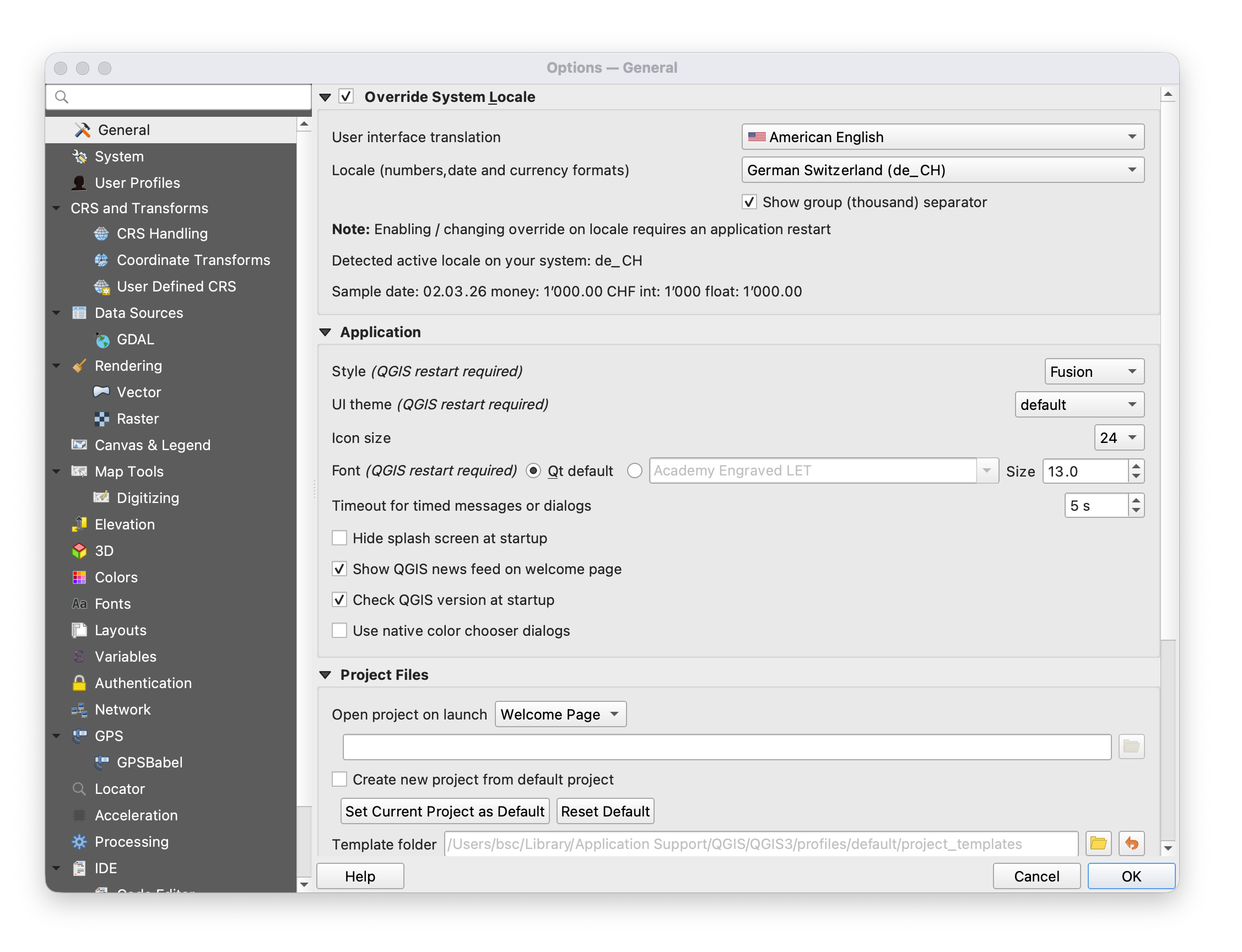
As developer, you will perform the following steps:
1. Mark text in UI and code as translatable
In Python code you mark a string by feeding it to the QGIS translator object:
my_string = QCoreApplication.translate(context: "context_of_this_string", sourceText: "the string to be translated")
For strings in the UI you need to open the according .ui file in QT Designer (or Designer, the app's name may differ), select the element to be translated, and make sure that "translatable" is checked in the entry 'text' of the category QLabel, QAbstractButton, or wherever you find this entry (depends of the UI item type).
2. Create a folder "i18n"
If it doesn't exist already, create a folder "i18n" within your project folder.
3. Translate .ui to .py files
If you have touched your .ui files then compile them into .py files with the command pyuic (pyuic5 or pyuic6).
pyuic5 -o name_of_ui_file.py name_of_ui_file.ui
4. Create a or update the .pro file listing all ui and code files that contain translatable text
Navigate into the i18n folder. There you need to create or – if it already exists – update a .pro file. It is a simple text file listing all other files that contain translatable text. It also specifies the translation files with .ts ending that will be generated next. A .pro file may look like this:
FORMS = ui/my_dialog.ui \
ui/another_dialog.uiSOURCES = my_plugin.py \
my_module.py \
another_module.pyTRANSLATIONS = i18n/my_plugin_de.ts \
i18n/my_plugin_fr.ts \
i18n/my_plugin_it.ts \
i18n/my_plugin_en.ts
5. Generate .ts files which list all translatable text
The command pylupdate (or pylupdate5 or pylupdate6) takes the .pro file as input and creates the specified .ts files, for instance:
pylupdate5 my_list_of_translatables.pro
6. Translate text in the .ts files with Linguist
Open all .ts files with the app QT Linguist (or just Linguist). There, you make all translations. Don't forget to save the files before quitting the application.
7. Compile the .ts files to .qm files
The command lrelease (or lrelease5 or lrelease6) will create .qm files from the .ts files. These are the files that the plugin will use for translation. Leave them in the i18n folder and make sure to include them in the plugin deployment.
lrelease5 *.ts